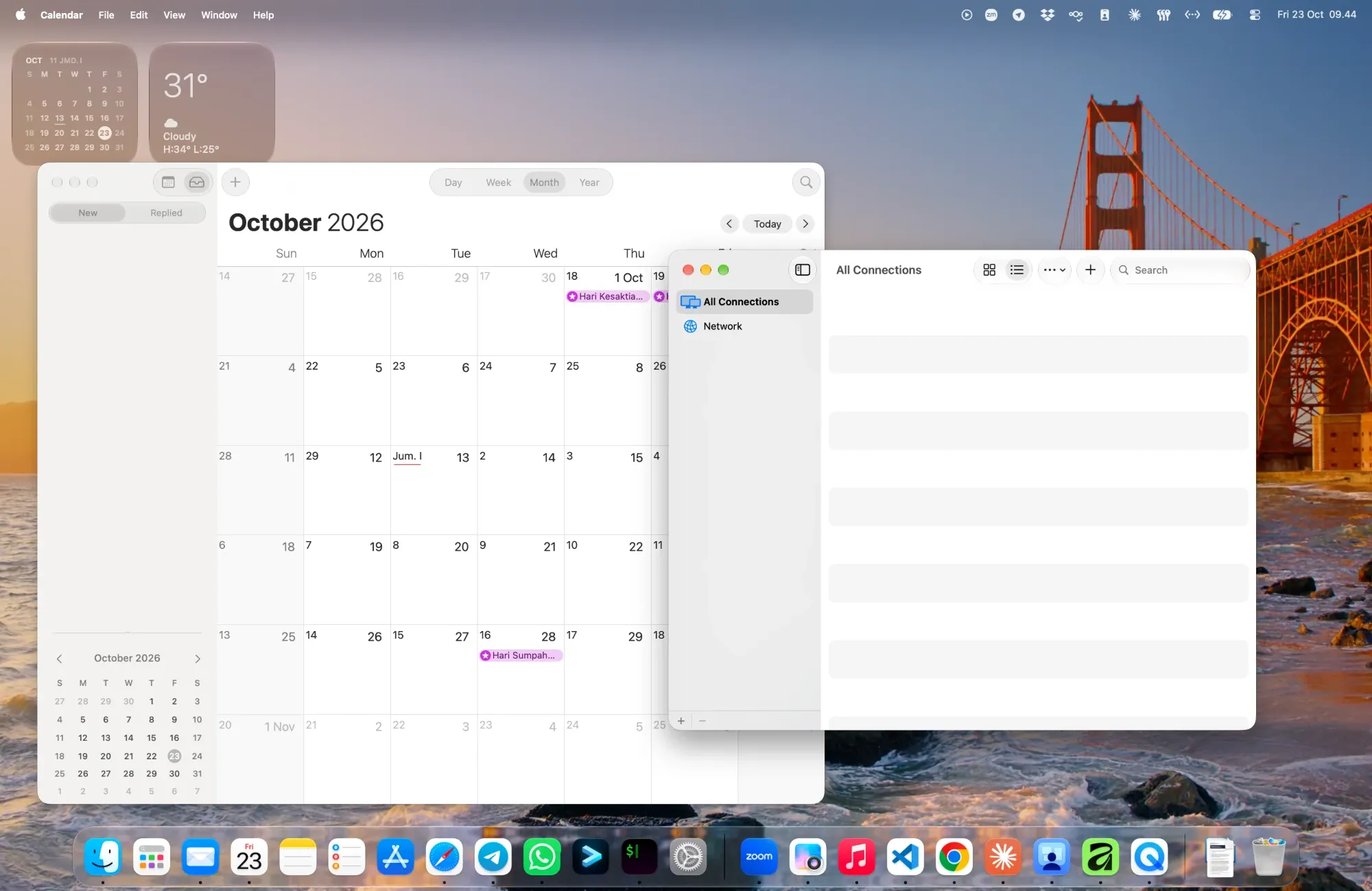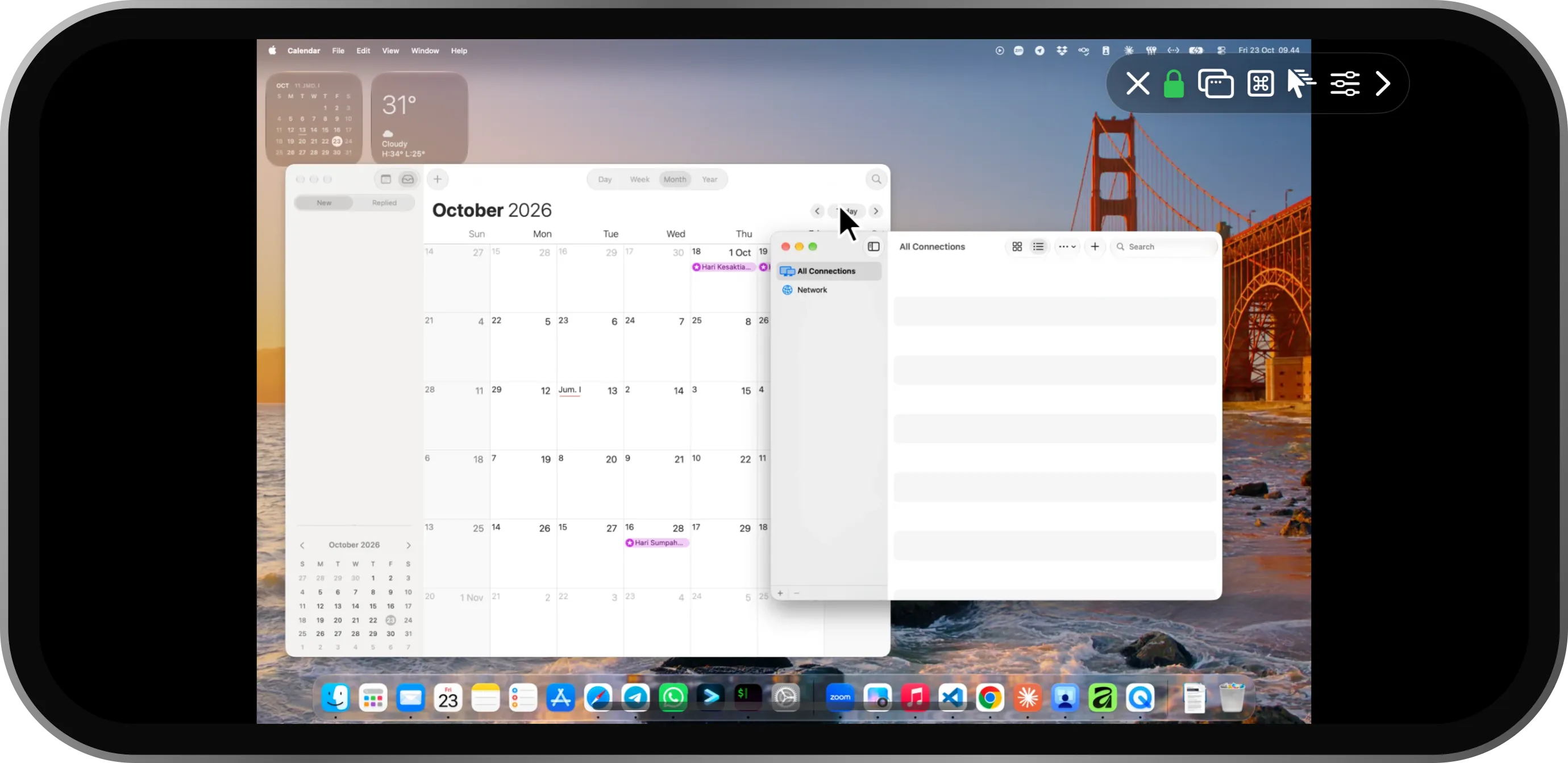


Feels like a real trackpad.
Tap to click, two fingers to scroll and right-click, tap-and-drag to move windows, pinch to zoom.
Nothing to install on your Mac. MacReach uses the Screen Sharing already built into macOS. Turn it on, tap your Mac, and you’re in.
install a helper app?skip.
create an account?skip.
set up a server?skip.
 1
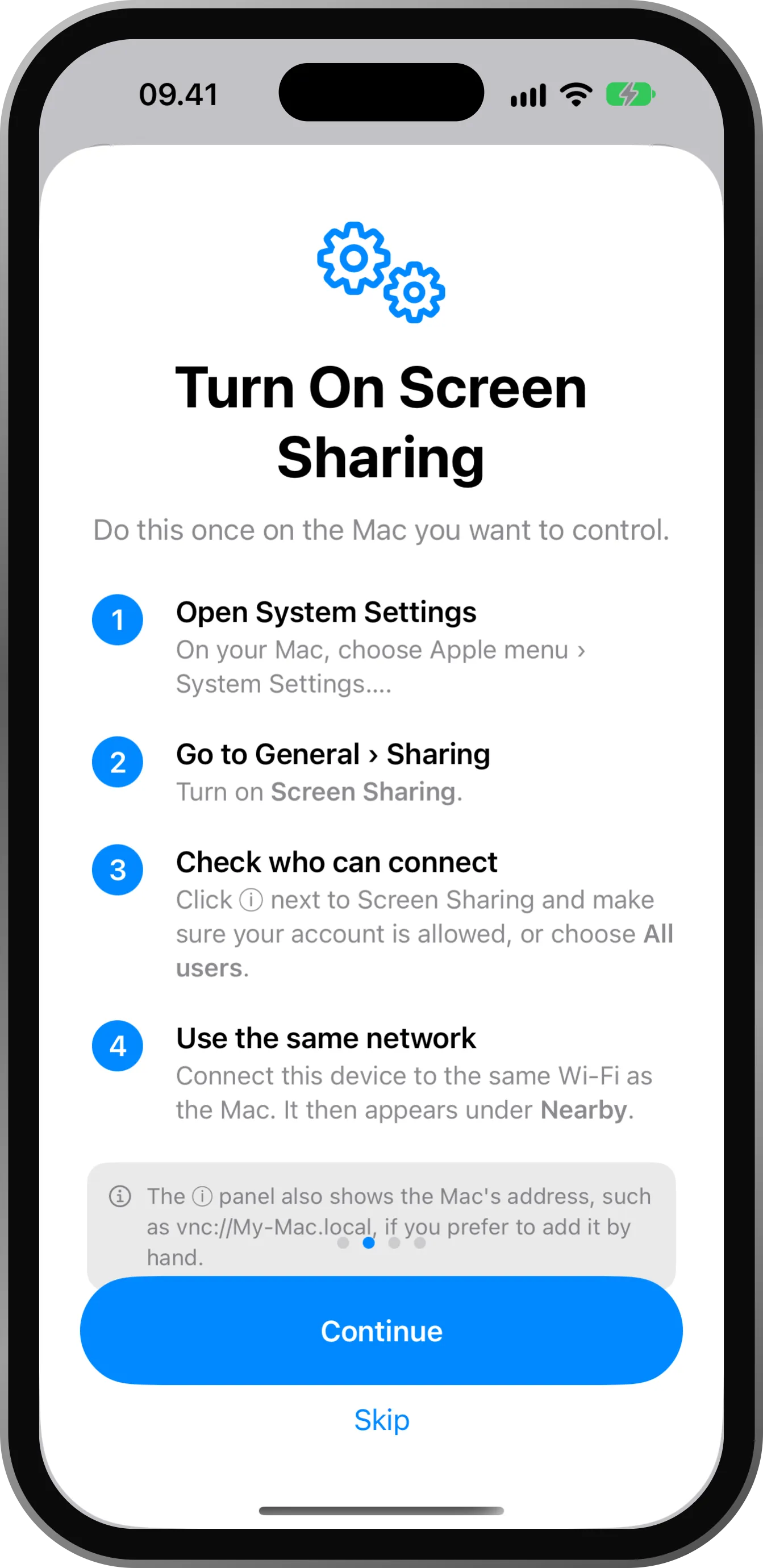
1Once, in System Settings on your Mac. That’s the whole setup.
 2
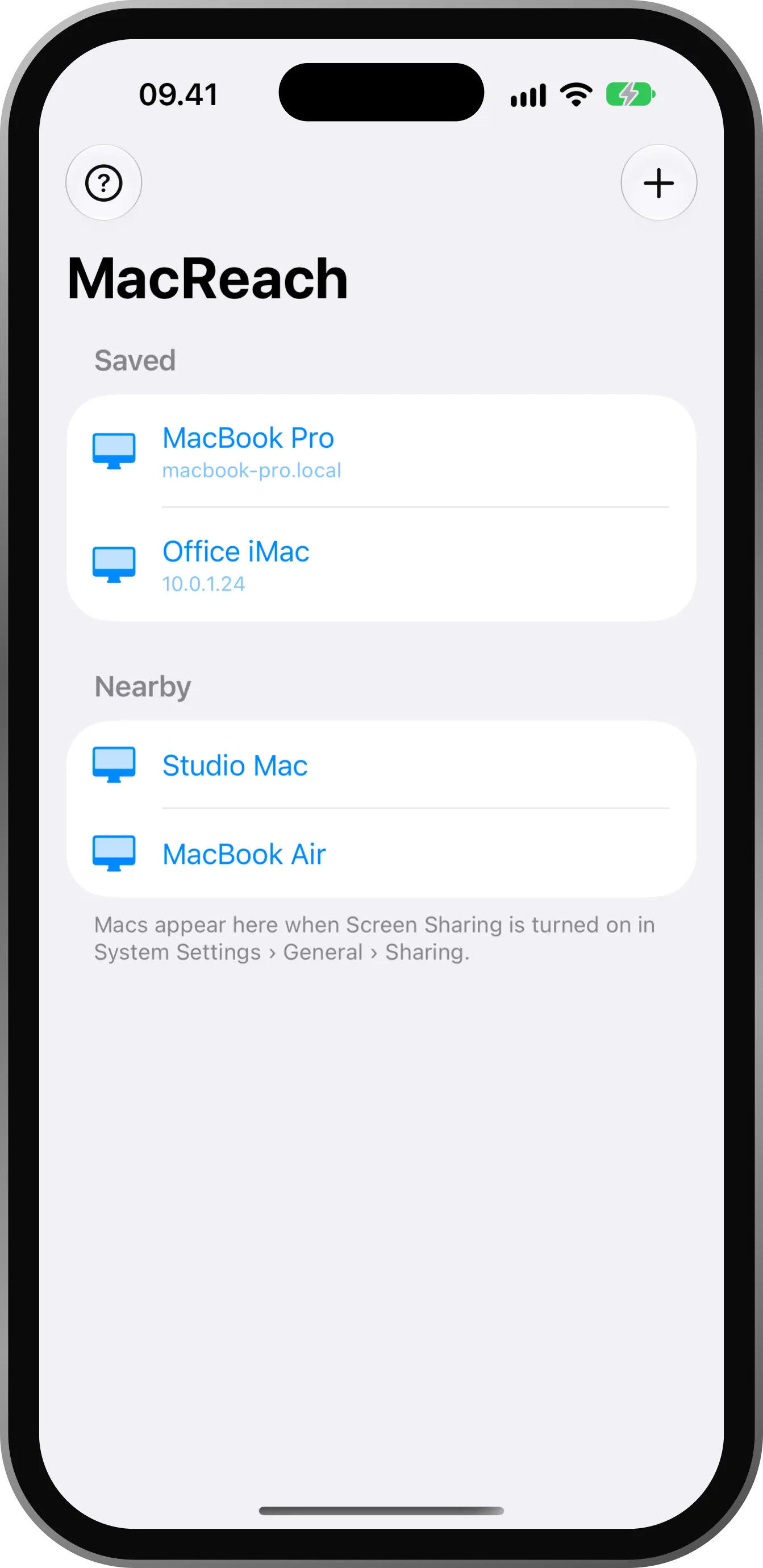
2Macs on your Wi-Fi show up on their own. Or add one by address.
 3
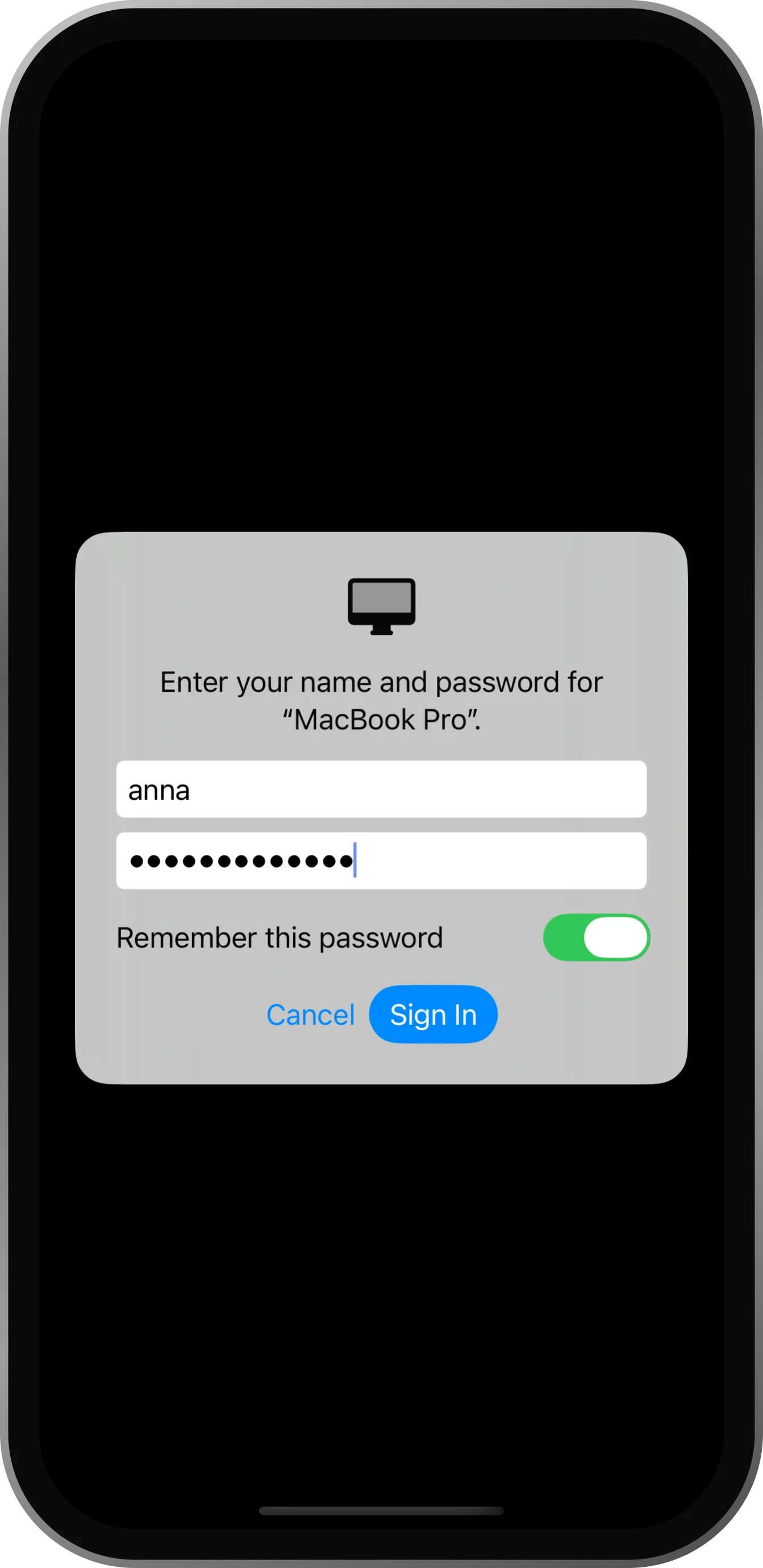
3Your password is checked by the Mac and kept in your Keychain.
Tap to click, two fingers to scroll and right-click, tap-and-drag to move windows, pinch to zoom.
Tap a modifier once for the next key, twice to hold it.
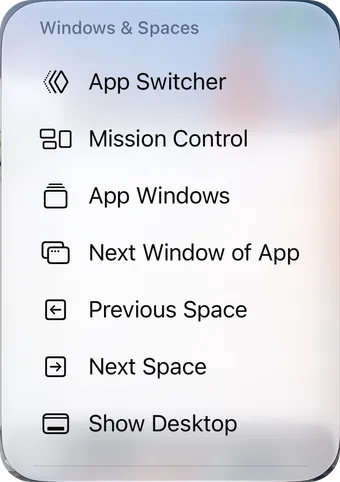
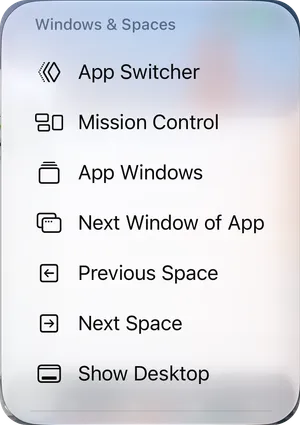
Spaces, App Switcher, App Windows and Show Desktop from the toolbar.
No account, no tracking. An encrypted connection straight to your Mac.
Full, Balanced or Fastest quality to match your network.
A big screen for your Mac, with support for keyboards, trackpads and mice.
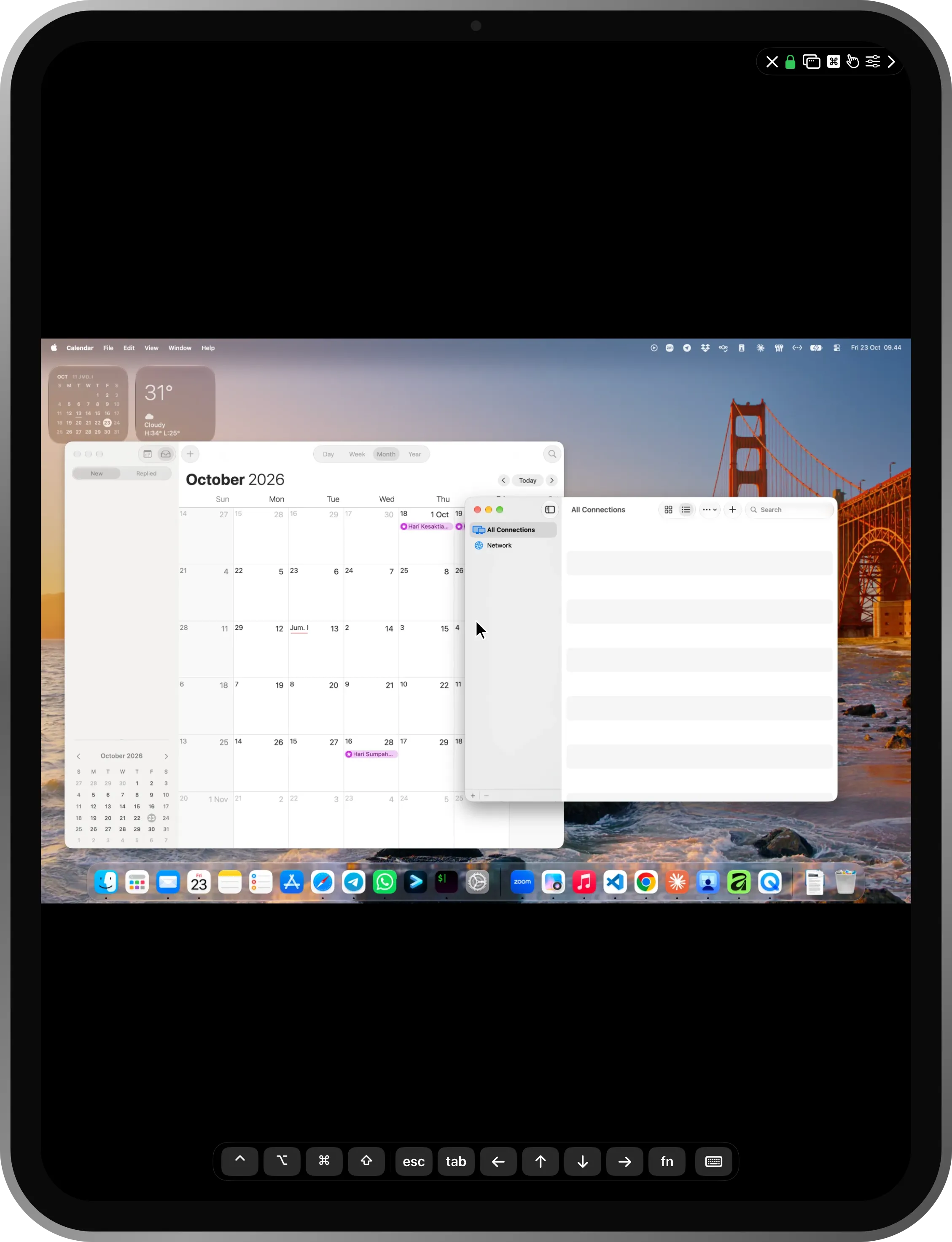
apps to install on your Mac.
MacReach speaks the same protocol as the Screen Sharing app on a Mac, so the Mac already has everything it needs.
An iPhone or iPad with iOS 18 or later, and a Mac with Screen Sharing turned on in System Settings › General › Sharing, on the same network.
Yes, with every feature included. The only limit is time: a free session lasts up to 15 minutes, and you can reconnect right away. MacReach Pro, a one-time purchase, removes the limit.
MacReach works on your local network. To reach a Mac from elsewhere, connect both devices to the same VPN.
You sign in with your Mac’s own account; the Mac checks the password. The connection is encrypted when the Mac supports it, and saved passwords stay in your device’s Keychain.
No. There are no accounts, analytics or ads. The screen travels only between your device and your Mac.
Your Mac is ready. Your iPhone is too.
Coming soon to the App Store